Corporate Event Page Checklist for Registration and Attendance

A corporate event page should help a visitor decide whether to attend, complete the right registration action and find practical information later. Put the purpose, date, location and response action near the top. Follow with the programme, speakers, eligibility rules and arrival details that support the decision.
This checklist is for business conferences, customer seminars, product launches and company events. It covers the public-facing information and the testing needed before you send people to the page.
On this page
Give the visitor a clear first screen
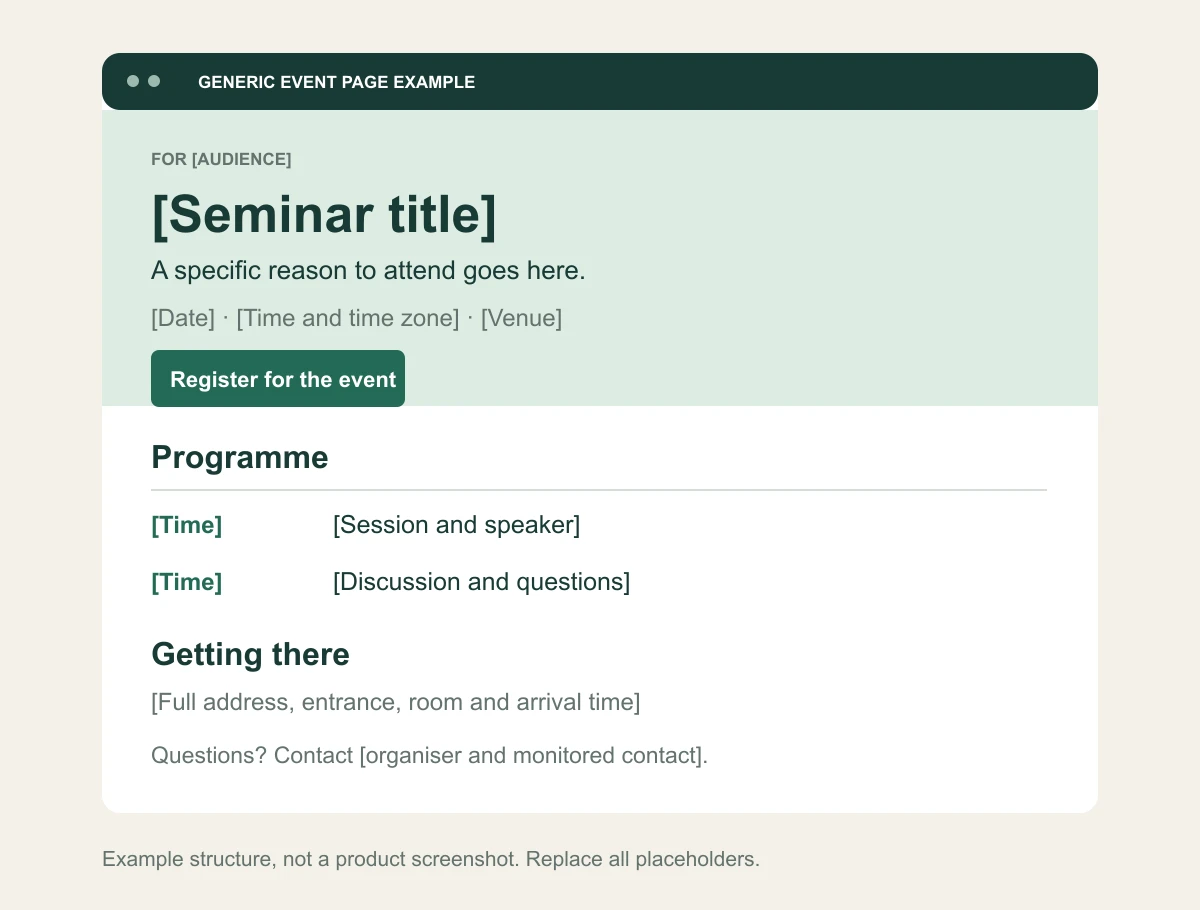
Name the event in language the audience understands. Follow it with a sentence explaining who it is for and what they can expect to learn or do. Avoid leading with an internal campaign slogan that means little to an outside visitor.
Show the date, start and end times, city or venue and a clear action. Use a label that describes the next step: “Register for the seminar” or “Respond to your invitation” is more informative than “Continue”.
On a phone, the essential information should remain readable without studying a large poster image. Put dates and locations in text, even if the cover artwork also includes them. Make sure a visitor can understand the page when the image does not load.
Explain who may attend
An internal employee event and a public customer seminar need different access rules. State whether the event is invitation-only, open to eligible registrants, limited to members or subject to organiser confirmation.
If companions are permitted, explain the allowance. If the event has a limited capacity, describe what happens when it is full. A waitlist message should not read like a confirmed booking.
For business events involving a fee, an approval step or other conditions, make those terms visible before registration. Do not imply that a yes response is sufficient if the actual process requires something else.
Show a programme that supports a decision
Publish session times, topic descriptions, rooms where relevant and the people responsible for presenting. A title such as “Session 2” gives little reason to attend. A short explanation of the problem being discussed helps the reader judge relevance.
If the programme is provisional, label the uncertain parts honestly. Do not present a speaker as confirmed until the organiser has agreement to do so. Make the finish time clear for attendees planning work or travel.
InviApp's business event tools include agenda, speaker profiles, moderator and partner presentation. Use the structure to connect people to sessions rather than scattering programme information across separate files.
Make speaker and partner details useful
A speaker profile should include the name, current role, company and a short biography explaining why the person is relevant to the session. Check spelling and obtain approved headshots and biographies.
For sponsors and partners, use approved logos and working links. Agree what the event team is promising to show. A logo on the page is a placement; it is not proof that every attendee noticed it or that the sponsor generated business.
Avoid uploading images containing long biographies. Text is easier to read, update and use with assistive technology.
Keep registration focused
Ask for the details needed to deliver the event. Explain required questions, companion rules and the deadline. Provide a contact route for someone who needs help or prefers to discuss support requirements directly.
InviApp's RSVP and guest list features support custom questions, companions and personal response links without guest accounts. Choose between a recognised invitation journey and open registration according to the event's actual rules.
After the response, make the outcome clear. Test what the visitor sees when confirmed, declined, waitlisted or returning to change an earlier answer. An unexplained form submission leaves people unsure whether they have a place.
Publish arrival information people can act on
Include the full venue address, entrance, room, arrival time and programme start time. Add transport or parking instructions when they are relevant and verified. A map pin alone may lead guests to the wrong side of a large building.
Describe accessibility arrangements that have been confirmed and identify a contact for questions. The W3C guidance on accessible events is a useful planning reference for participant access and materials.
If the venue has security requirements, communicate them before the event. Do not ask attendees to upload identity documents into a general registration field unless your organisation has established an appropriate process.
Make branding consistent and readable
Use the organisation's logo, colours and typography with sufficient contrast and readable text sizes. The registration action should remain obvious even if the brand palette is subtle.
A company-controlled event address can make the page easier to recognise. InviApp supports custom domains and white-label event pages on Business. Branding still needs practical testing: a recognisable URL does not fix a broken form or unclear copy.
Review the preview on a phone. A cover image that looks good on a wide desktop screen may crop out the relevant subject on mobile.
For ownership and setup checks, read the guide to custom domain event pages.
Test the complete attendee journey
Use a test record rather than a real attendee's personal invitation. Open the page from the email, respond, return to it and check how a change is handled. Repeat the process on a phone and through the main channels you plan to use.
Check that public links are suitable for sharing and that personal links go only to their intended recipients. Test the deadline and full-capacity states before relying on them during the live event.
Ask someone outside the project team to answer four questions: what is this event, why should I attend, where do I respond, and what happens next? Their uncertainty is useful feedback about the page.
Keep one current source after launch
Assign an owner for programme and venue updates. Change the page first, then notify affected people when the change is important. Avoid circulating multiple attachments that disagree with the live programme.
Link invitations and reminders to the stable event address. Once the event ends, decide what remains useful and appropriate to retain. Review galleries and attendee-related content under your organisation's normal publication process.
For a broader operating process, see how to manage corporate event RSVPs. The page and the list should support the same event rules.
Final prelaunch checklist
- Event purpose, audience, date and time zone are clear.
- Venue, entrance, rooms and contact details are accurate.
- Registration, eligibility and companion rules agree.
- Agenda and speaker information are approved.
- Deadline, capacity and waitlist states have been tested.
- Mobile reading, links and response confirmation work.
- An owner is responsible for updates and attendee questions.
Frequently asked questions
Does a corporate event need a separate website
It needs a dependable place for the information and registration journey. A focused event page may be enough when it contains the programme, practical details and response process. A larger event may have broader website requirements.
Should we upload the programme as a PDF
A downloadable version can be useful, but keep the current programme in readable page text as well. That gives attendees a convenient source when timing or room details change.
What should the main call to action say
Describe the actual next step, such as registering or responding to an invitation. Do not use a button that implies instant confirmation if the attendee must first be approved.
Build the page around the attendee's task
Use the checklist to brief your team and test the result. Explore InviApp Business for a branded page combining registration, programme, speakers and event details.